The connection to Salesforce is always established when the visitor has completed the form completely. Unless you want to pre-fill the form Contact details (see the article Prefills based on ContactId for more information about this).
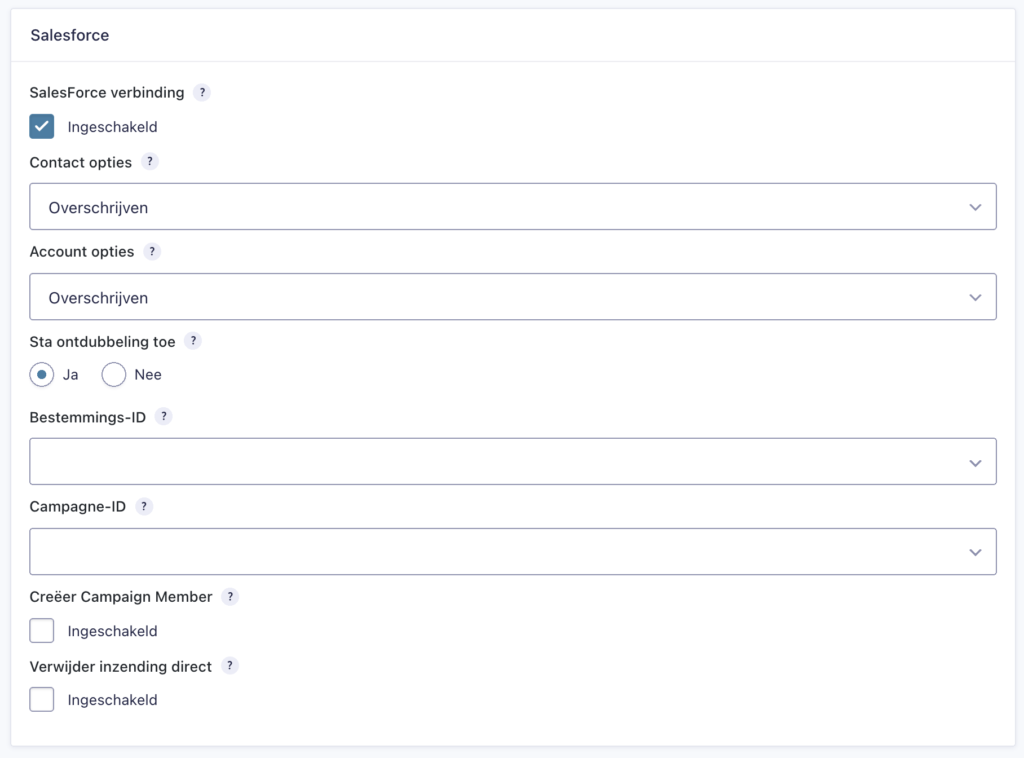
Indicate in the Salesforce settings of the form that a Salesforce connection must be established.
Destination ID Select one of the available destinations from SalesForce here. A destination is a required field for a transaction to Converse.
Campaign ID Choose a campaign from Salesforce to either associate a transaction or a Contact (if one is created or found). A campaign is also required for a transaction to Converse.
Create Campaign Member If you check this option, a CampaignMember object will be created after the visitor has completed the form. If the Contact is already a member of the campaign, nothing will happen.
Delete submission immediately It is possible to set a form that the created submission must be deleted immediately after the visitor has completed the form. This is often used at Preference centers. This allows, for example, a Contact to update his / her data (or newsletter registrations). To prevent too many entries, these can be deleted immediately. PLEASE NOTE : this cannot be undone.
Depending on your Customer Payment Management platform (Converse or Findock), a few more options will appear in this list.
Converse
Allow deduplication By default this option is set to Yes and is linked to the Converse API field AllowDeduplication .
Allow data enrichment By default this option is set to Yes and is linked to the Converse API field AllowDataEnrichment .
Findock v1
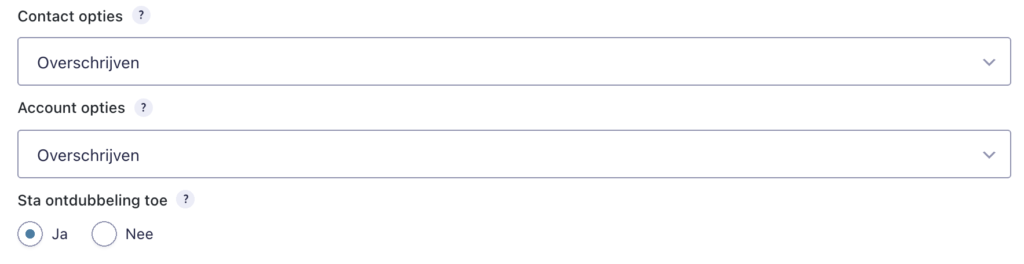
Contact options Choose what to do if Findock finds an existing Contact. Overwrite, fill in empty fields only or do nothing
Account options Choose what to do if Findock finds an existing Account. Overwrite, fill in empty fields only or do nothing
Allow deduplication By default this option is set to Yes and is linked to the Findock API field allowDeduplication .
Note
The Converse and Findock options mentioned above will be hidden as soon as you choose in the CampaignSuite settings to use the Plauti Duplicate Check App. That is because the App then takes over all the logic of saving the Contact and Account and not Converse or Findock.